Rin Migration Guide (v0.3.0)
This guide helps existing Rin users migrate to the latest version.
Overview of Changes
Version 0.3.0 includes significant architectural changes:
- Framework Migration: Replaced ElysiaJS with a custom lightweight framework
- API Changes: New API client interface
- Login Methods: Added support for username/password authentication
- OAuth Changes: GitHub OAuth variable names updated
- Performance Improvements: Significant performance enhancements
Migration Steps
Step 1: Sync Fork
- Go to your forked repository on GitHub
- Click the "Sync fork" button
- Click "Update branch" to merge changes
Step 2: Update Environment Variables
Required Changes
GitHub OAuth Variables (if using GitHub login)
Old variable names are deprecated:
Steps:
- Go to Settings → Secrets and variables → Actions
- Add new Secrets with the
RIN_prefix - (Optional) Delete old Secrets
Optional: Add Username/Password Login
If you prefer simple username/password authentication over GitHub OAuth:
- Add the following Secrets:
ADMIN_USERNAME: Your desired usernameADMIN_PASSWORD: Your desired password
Step 3: Remove Pages (Optional but Recommended)
Starting from 0.3.0, Rin now uses Workers to host static assets instead of Cloudflare Pages. Follow these steps to migrate:
-
Unbind Pages Domain
- Go to Cloudflare Dashboard → Pages
- Select your Pages project → Custom domains
- Remove the bound domain
-
Bind Domain to Worker
- Go to Cloudflare Dashboard → Workers & Pages
- Select your Worker (
rin-server) - Click "Triggers" → "Add Custom Domain"
- Enter your domain and save
-
Clean Up Extra Domain Bindings
- Check the Worker's custom domain list
- Remove unnecessary bindings (e.g.,
seo/*,sub/*, etc.)
-
Update GitHub OAuth Callback
- Go to GitHub → Settings → Developer settings → OAuth Apps
- Find your OAuth App
- Change the Authorization callback URL from:
https://<worker-domain>/user/github/callback
- To:
https://<your-domain>/api/user/github/callback
Step 4: Update Cloudflare API Key Permissions
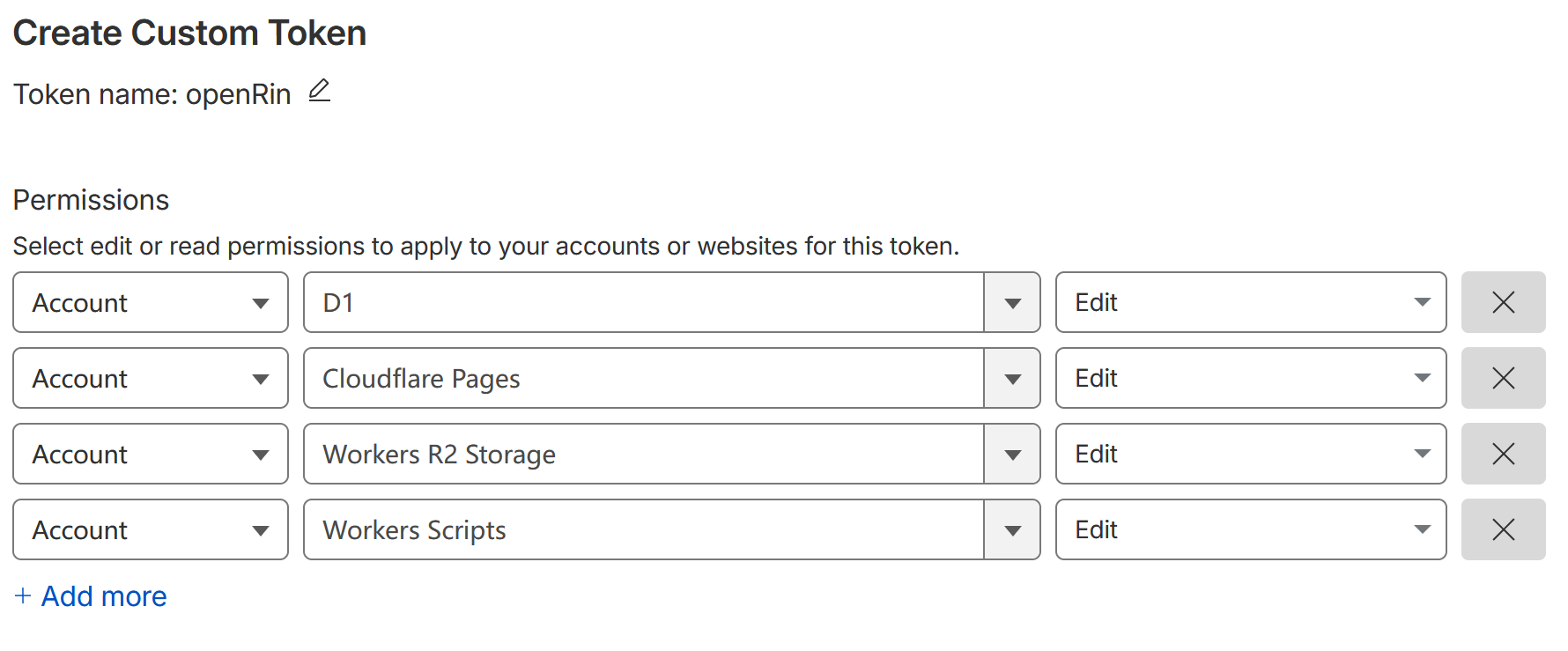
Ensure your Cloudflare API Token has the following permissions:
- Cloudflare Workers:Edit
- D1:Edit
- R2:Edit (if using R2 storage)
Step 5: Rename the Branch
- If the previously forked branch was
dev, you need to manually rename it tomainormaster.
Step 6: Deploy
- Go to the Actions tab in your repository
- Select the "Build" workflow
- Click "Run workflow"
- After successful build, the
Deployworkflow will be automatically triggered to automatically deploy to workers.
Step 7: Verify Deployment
- Visit your frontend URL
- Test the login functionality
- Check if existing articles are accessible
- Verify images load correctly
Breaking Changes Summary
API Client Interface
Old code (no longer supported):
New code:
If you have custom frontend code using the old API, please update accordingly.
Authentication Flow
- Old: Backend redirects to frontend callback URL
- New: Standalone
/loginpage with dedicated login flow
Environment Variable Changes
*At least one login method must be configured
Post-Migration
Try New Features
- Profile Management: Visit
/profileto update avatar and username - Performance Boost: Experience faster cold starts and lower CPU usage
- Better Login Experience: New standalone login page with improved focus handling
Cleanup (Optional)
After successful migration, you can:
- Remove deprecated environment variables
- Delete old preview deployments if no longer needed
- Update custom scripts to use the new API interface
Troubleshooting
"Version Mismatch" Error
Solution: Ensure git tags match the package.json version. Syncing should handle this automatically.
"Cannot Login"
Solution:
- Verify at least one login method is configured (GitHub OAuth or username/password)
- Check Secrets are set correctly
- Try clearing browser cache
"Images Not Loading"
Solution:
- Check S3/R2 configuration
- Verify
S3_ACCESS_HOSTis set correctly - Check R2 bucket permissions
Rollback (if needed)
If migration fails and you need to rollback:
- Restore previous git tag:
git checkout v0.2.x - Force push to main (⚠️ destructive):
git push origin HEAD:main --force - Redeploy from Actions
Need Help?
Last updated: 2025-02-08